
मुकिया USB-C लैपटॉप डॉक स्टैंड – रोज़मर्रा की कनेक्टिविटी | क्रिएटर
More Connections. A Cleaner Mac mini Setup.
Buy any 2, get 20% off at checkout no code needed
- 1. Custom Fit for Your Mac mini
- 2. Expandable NVMe Storage up to 8TB
- 3. Front USB Ports with up to 10Gbps
- 4. Dual UHS-II SD and microSD Readers
- 5. Four Ambient Light Colors
Key Features
1. Custom Fit for Your Mac mini
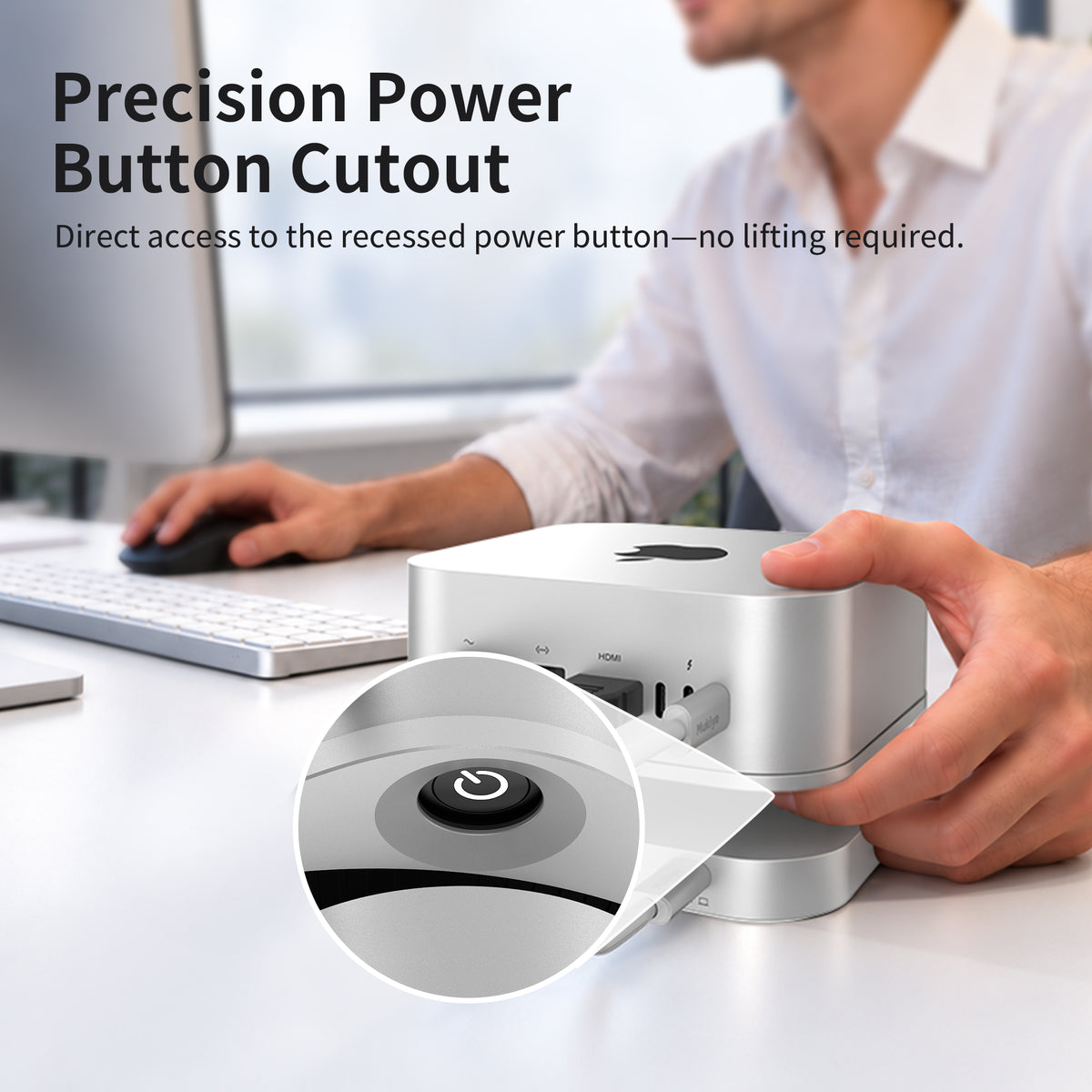
A fitted stand with easy access to the power button.
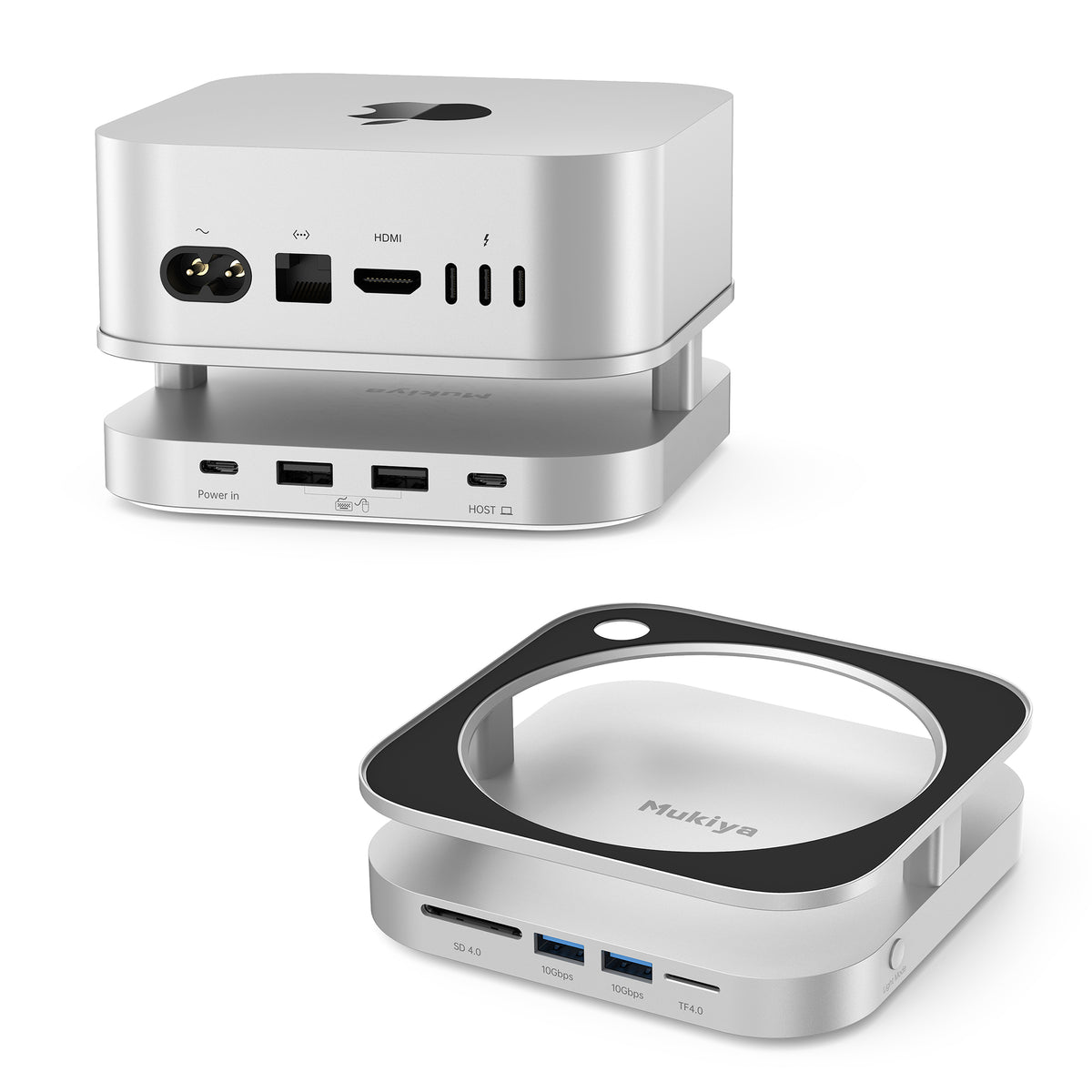
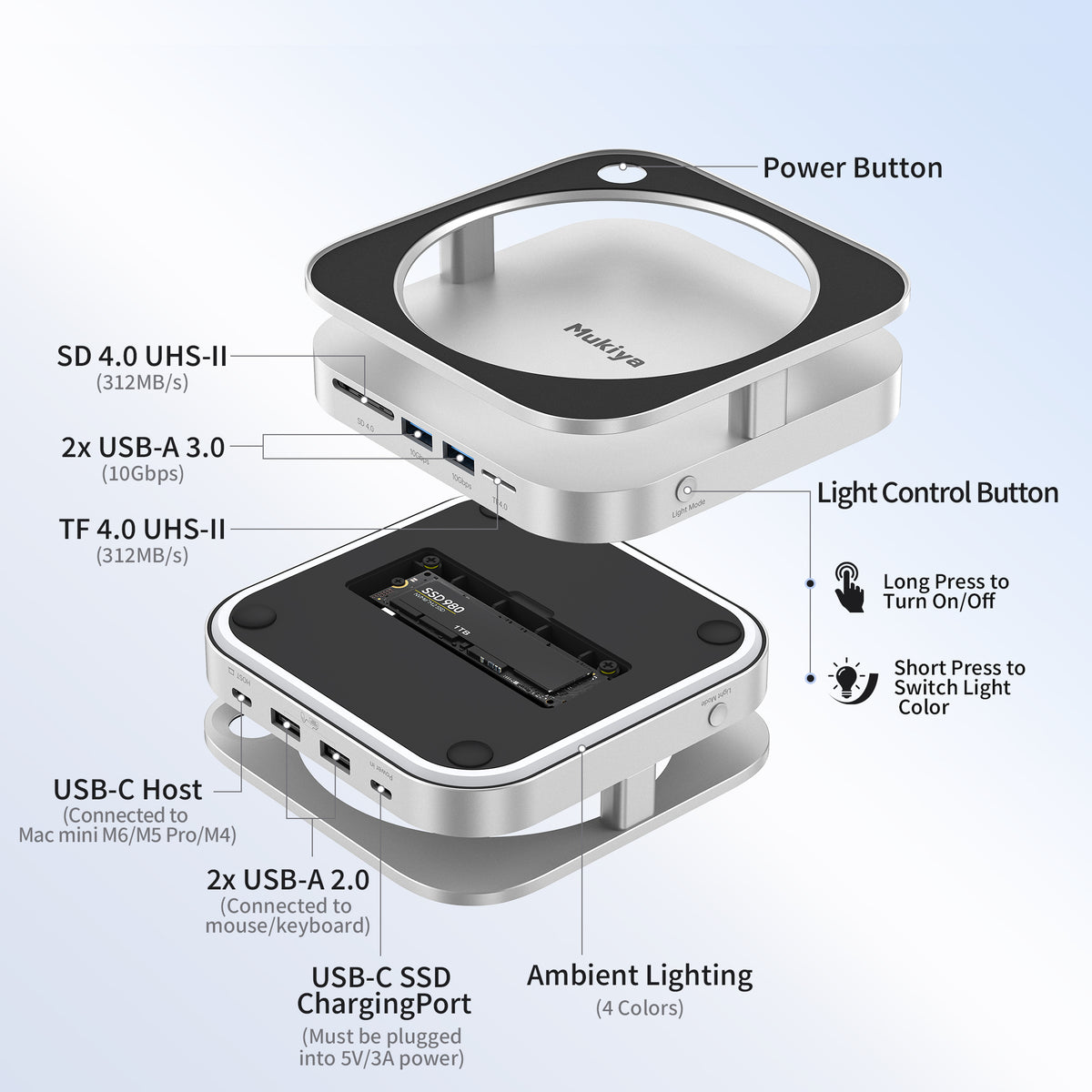
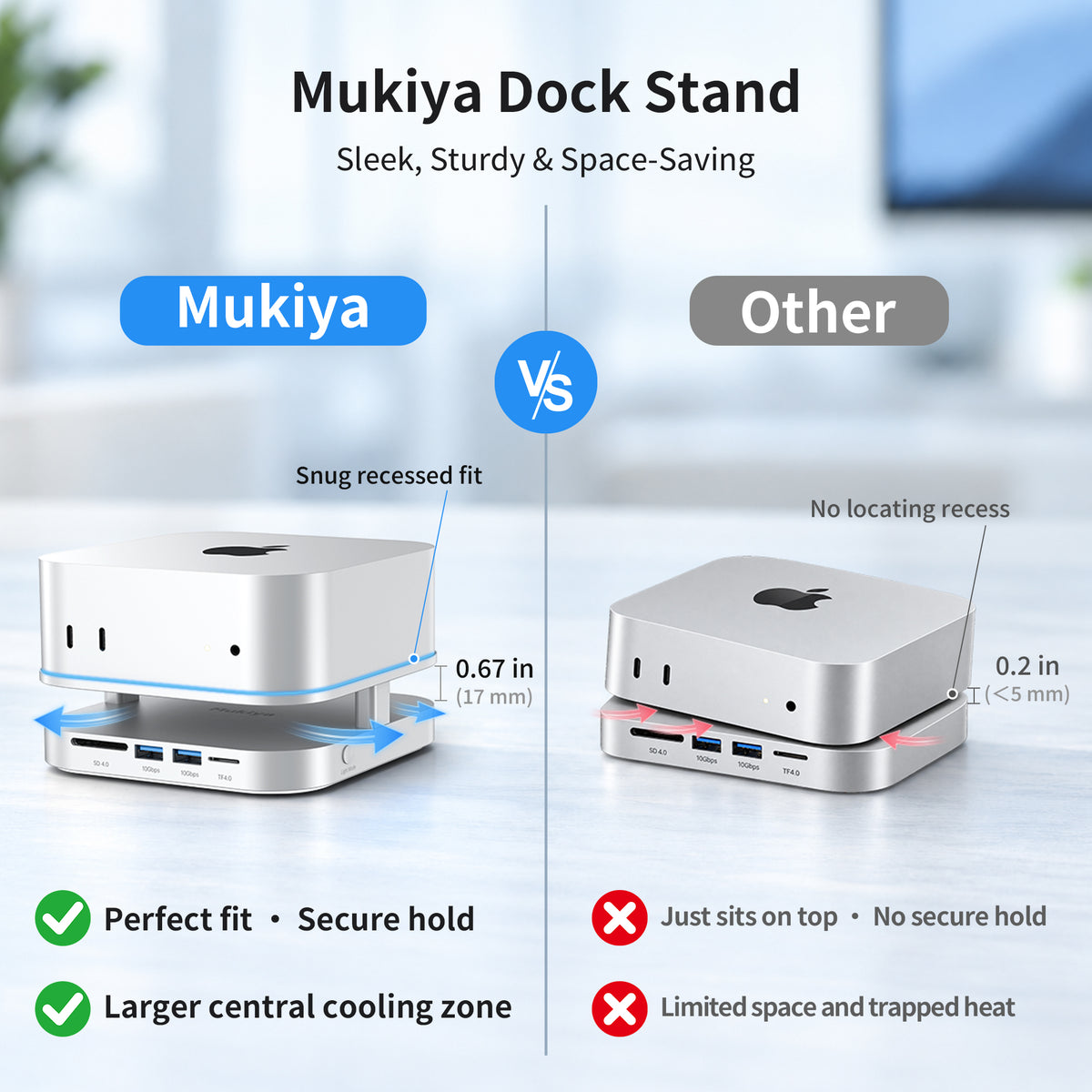
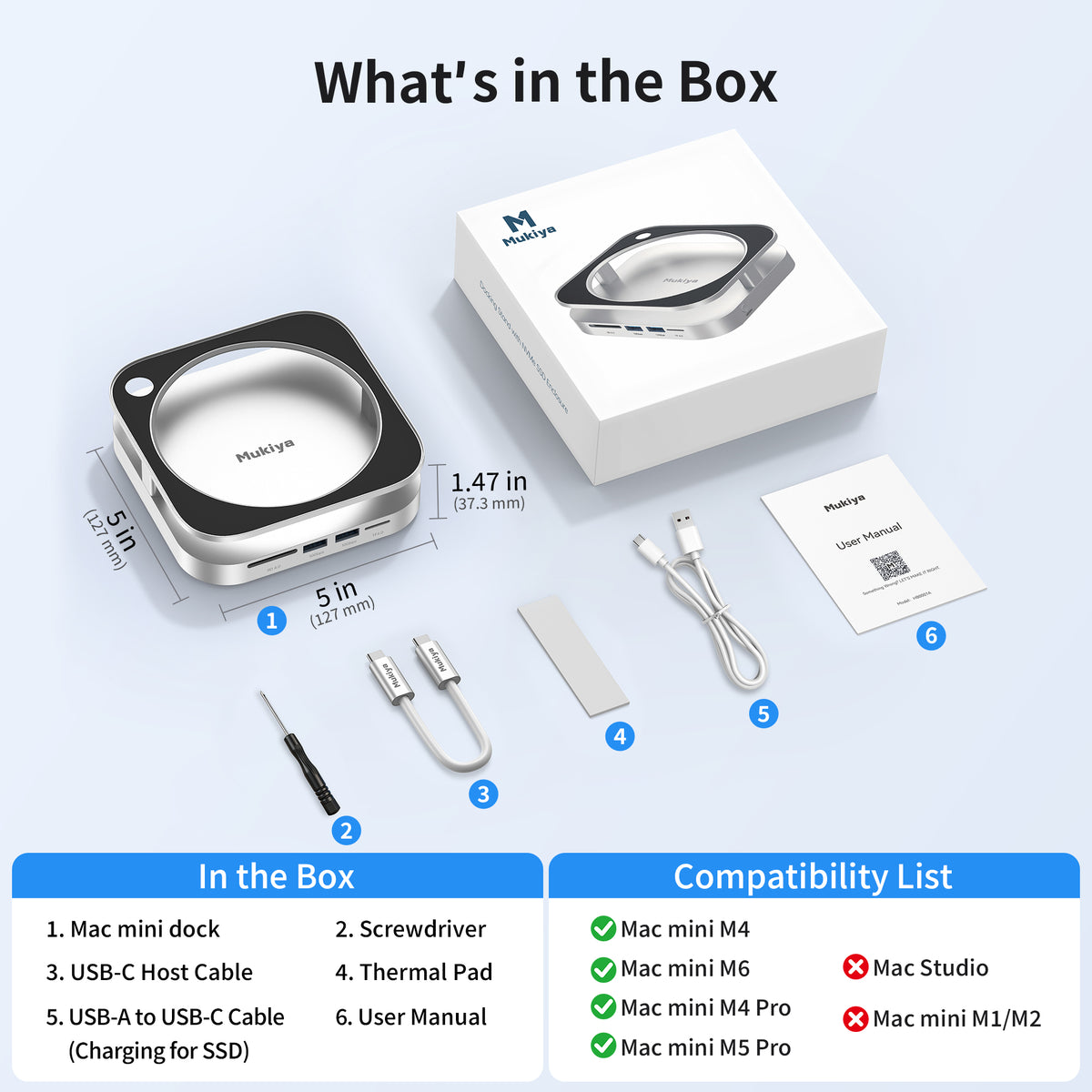
Designed for Mac mini M6, M5 Pro, M4 and M4 Pro, the silver aluminum stand supports your computer with a recessed fit and anti-slip silicone pads. A dedicated cutout lets you reach the power button without lifting your Mac mini.
2. Expandable NVMe Storage up to 8TB
Add external storage for your growing projects and files.
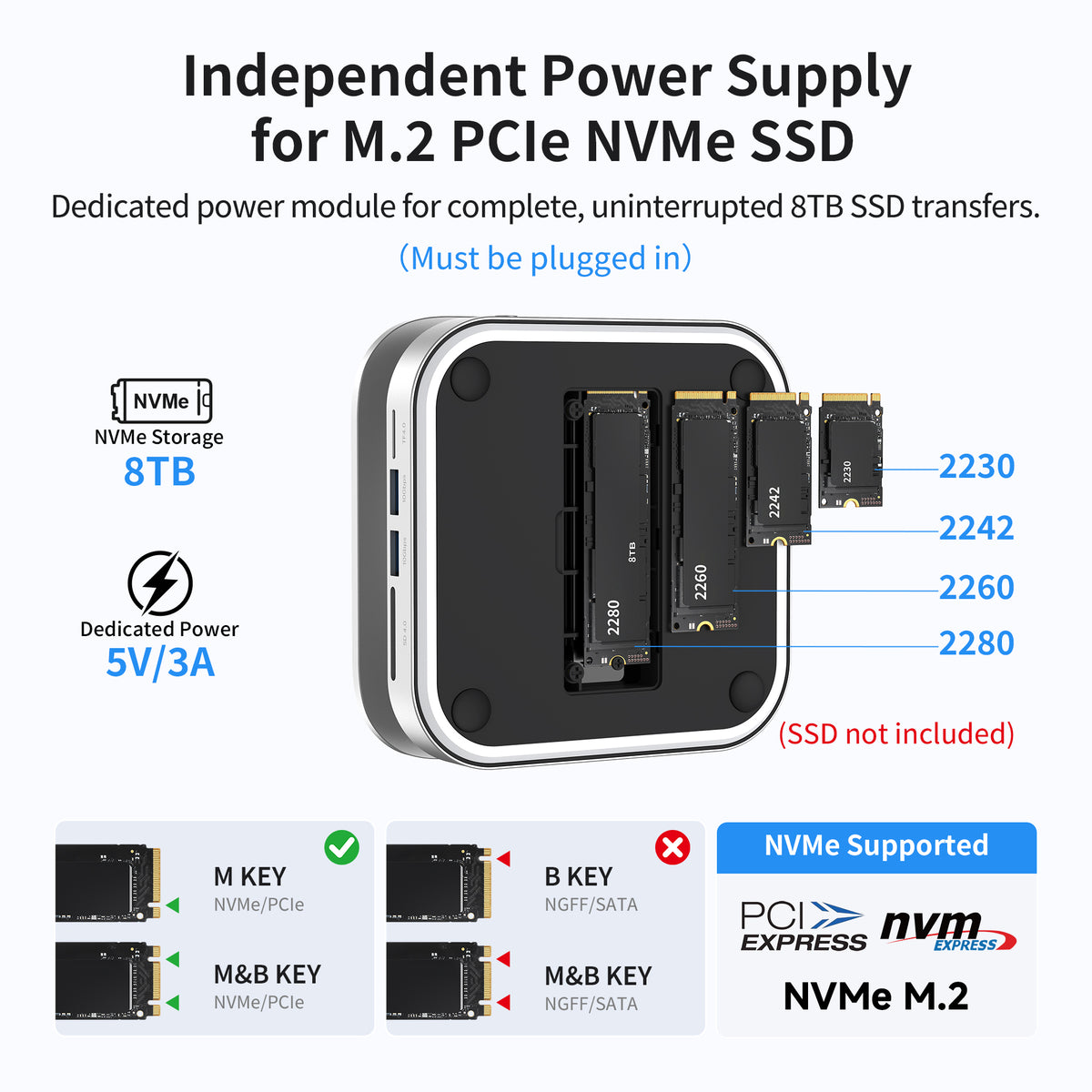
Install a compatible single-sided M.2 NVMe SSD in 2230, 2242, 2260 or 2280 size, with capacity support up to 8TB. SSD operation requires an external 5V/3A power adapter. The power cable is included; the SSD and power adapter are sold separately.
3. Front USB Ports with up to 10Gbps
Keep fast storage and everyday accessories within reach.
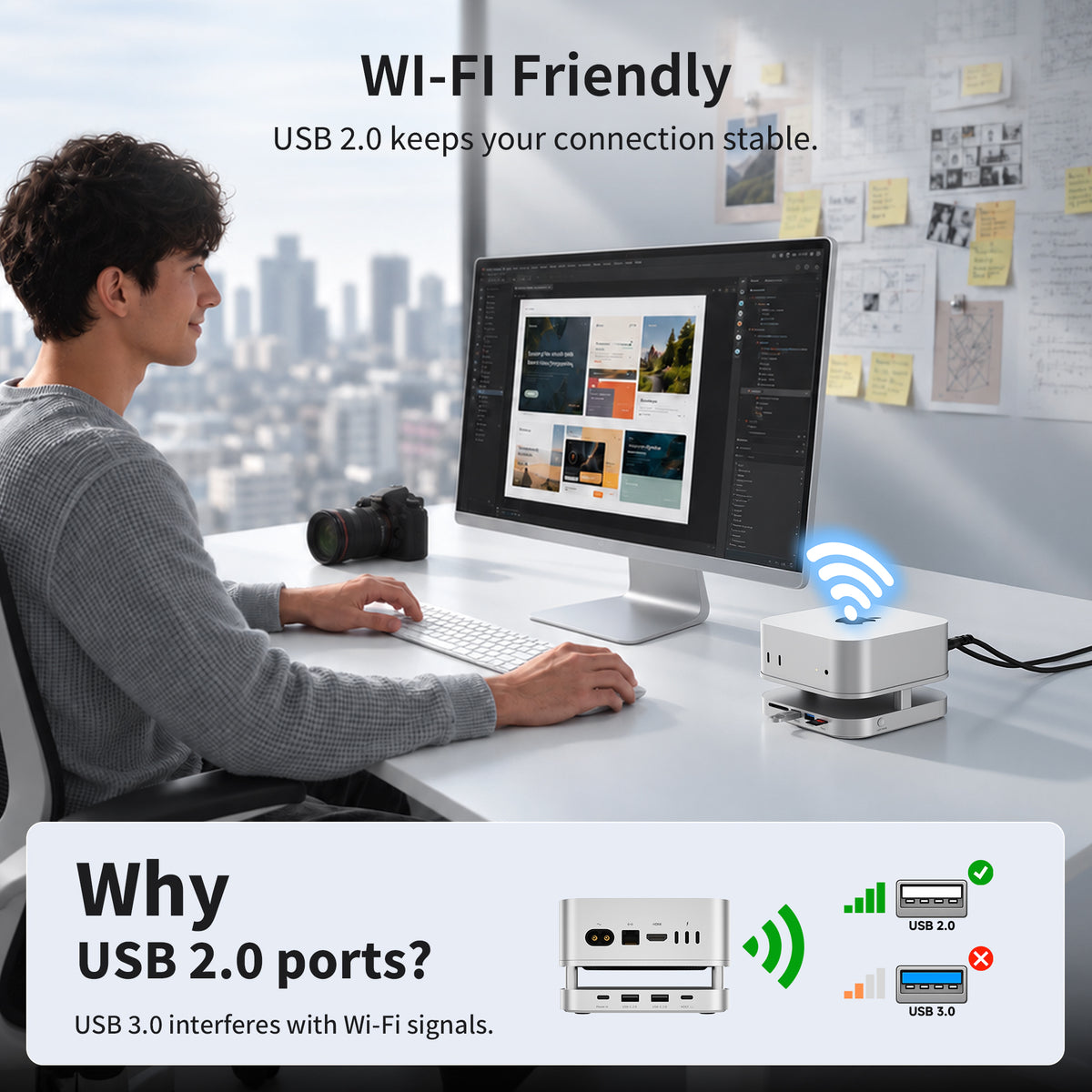
Two front USB-A 3.2 Gen 2 ports support data transfer up to 10Gbps. Two rear USB-A 2.0 ports support up to 480Mbps for keyboards, mice and other low-speed peripherals. All data connections share the dock’s 10Gbps host bandwidth.
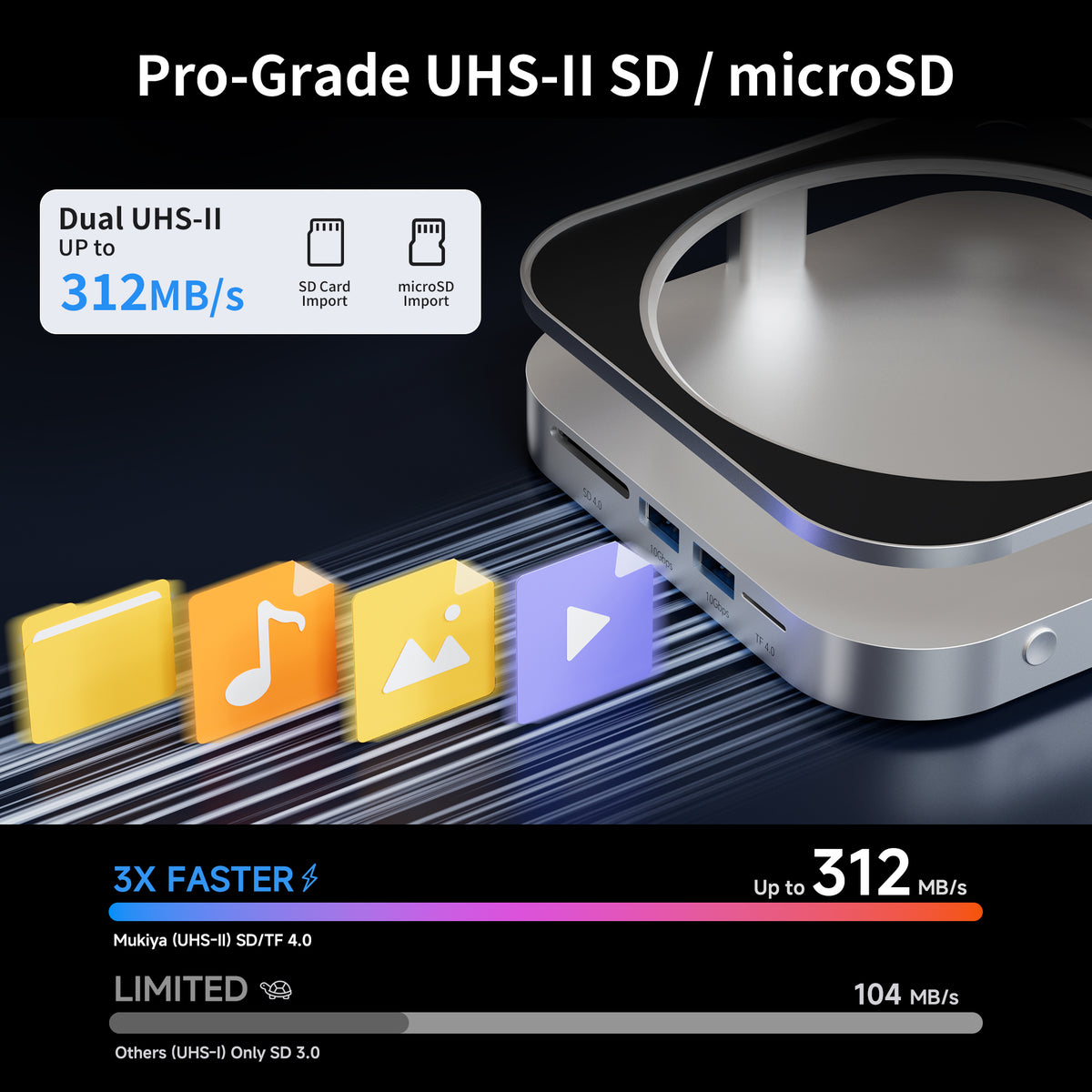
4. Dual UHS-II SD and microSD Readers
Bring camera-card access to the front of your desk.
Built-in SD and TF/microSD UHS-II readers support interface speeds up to 312MB/s with compatible cards. Access photos, videos and project files without a separate card reader. Actual transfer speeds depend on the card, connected devices and available bandwidth.
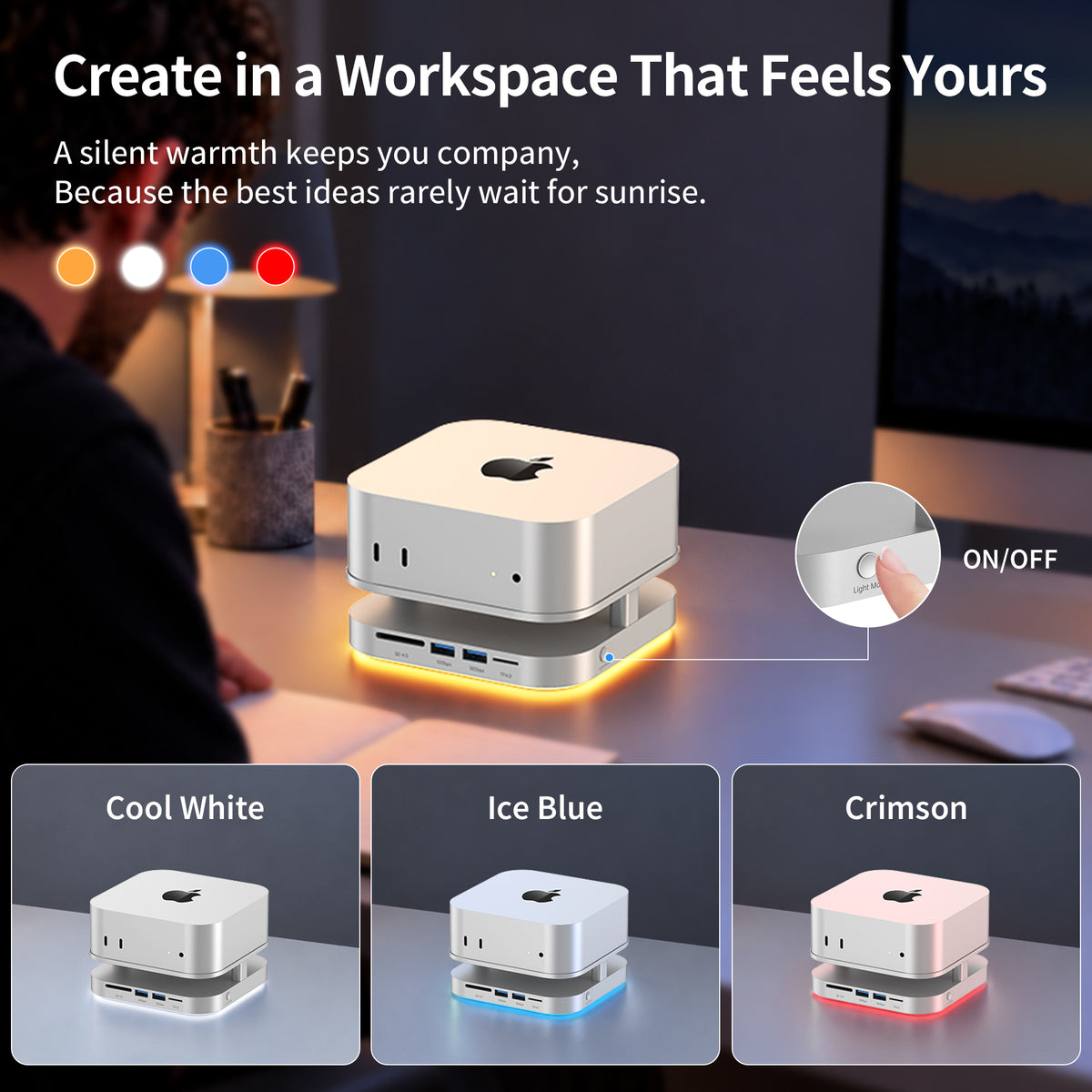
5. Four Ambient Light Colors
Choose a light color that suits your workspace.
Switch between cool white, warm white, ice blue and red using the touch control. Short-press to change colors, or long-press to turn the light off or back on. The raised stand and aluminum housing help support airflow and passive heat dissipation.
Specifications
2× USB-A 2.0
1× SD + 1× TF/microSD Reader
1× M.2 NVMe SSD Slot
1× USB-C Host Connection
1× USB-C External Power Input
Connect to a rear Thunderbolt port
2230 / 2242 / 2260 / 2280
M-key or B+M-key NVMe
M.2 SATA SSDs are not supported
Rear USB-A: Up to 480Mbps
Up to 312MB/s with compatible cards
Required for SSD operation
Power adapter not included
one 10Gbps host connection
Short-press: Switch Colors
Long-press: Light On / Off
Anti-Slip Silicone Pads
USB-C Host Cable
USB-A to USB-C Power Cable
Screwdriver
Thermal Pad
User Manual
Power Adapter
Maximum speeds are interface limits. Actual performance depends on the SSD, memory card, host and connected devices. Ports share the host bandwidth and cannot all reach their individual maximum speeds simultaneously. USB-A ports do not support CD readers, Apple SuperDrive or iPad charging.
See It in Action
Pairs well with
Dispatched Fast, Delivered Free
30-Day Risk-Free Trial
2-Year Warranty
Complimentary Shipping & Returns


You May Also Like

मुकिया USB-C लैपटॉप डॉक स्टैंड – रोज़मर्रा की कनेक्टिविटी | क्रिएटर
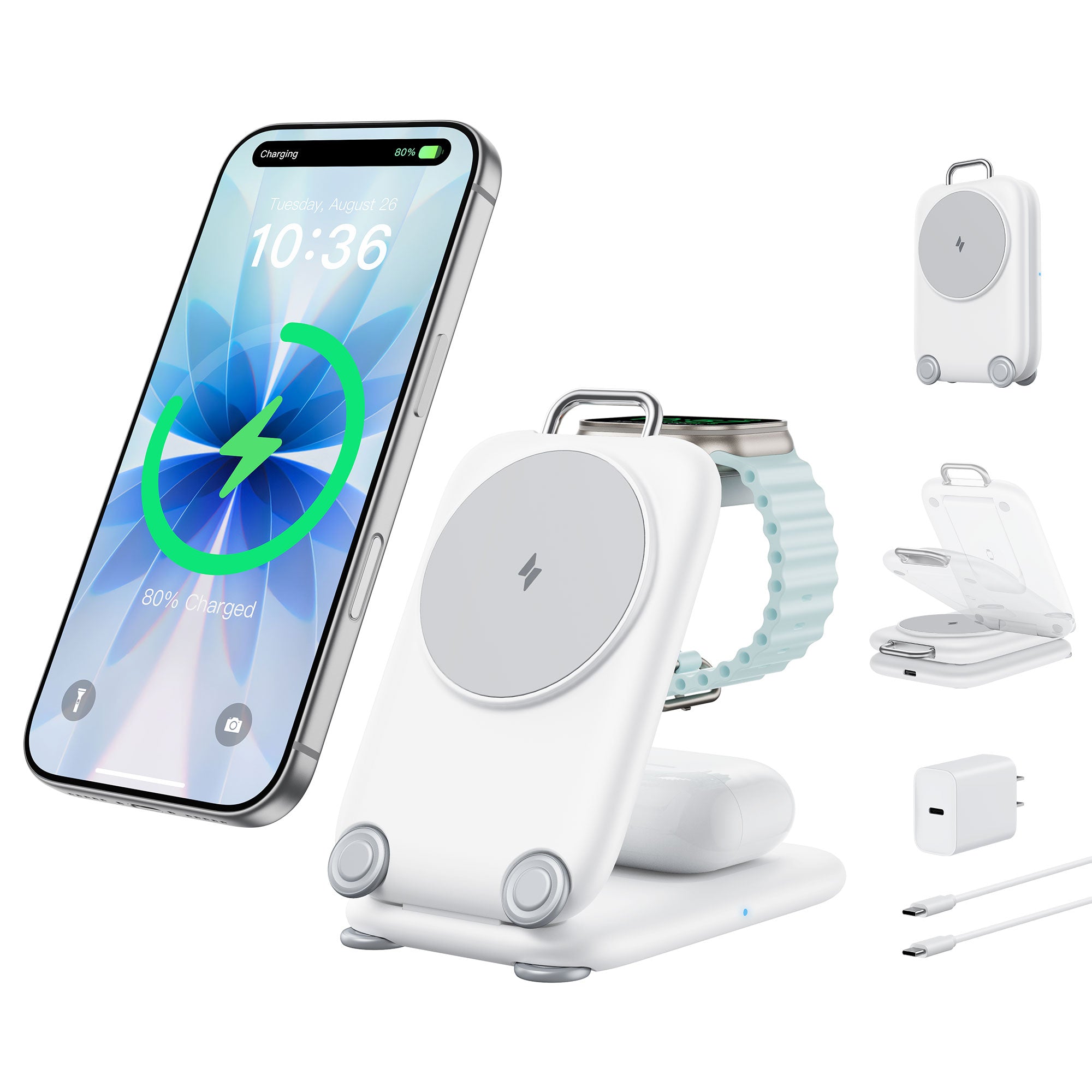
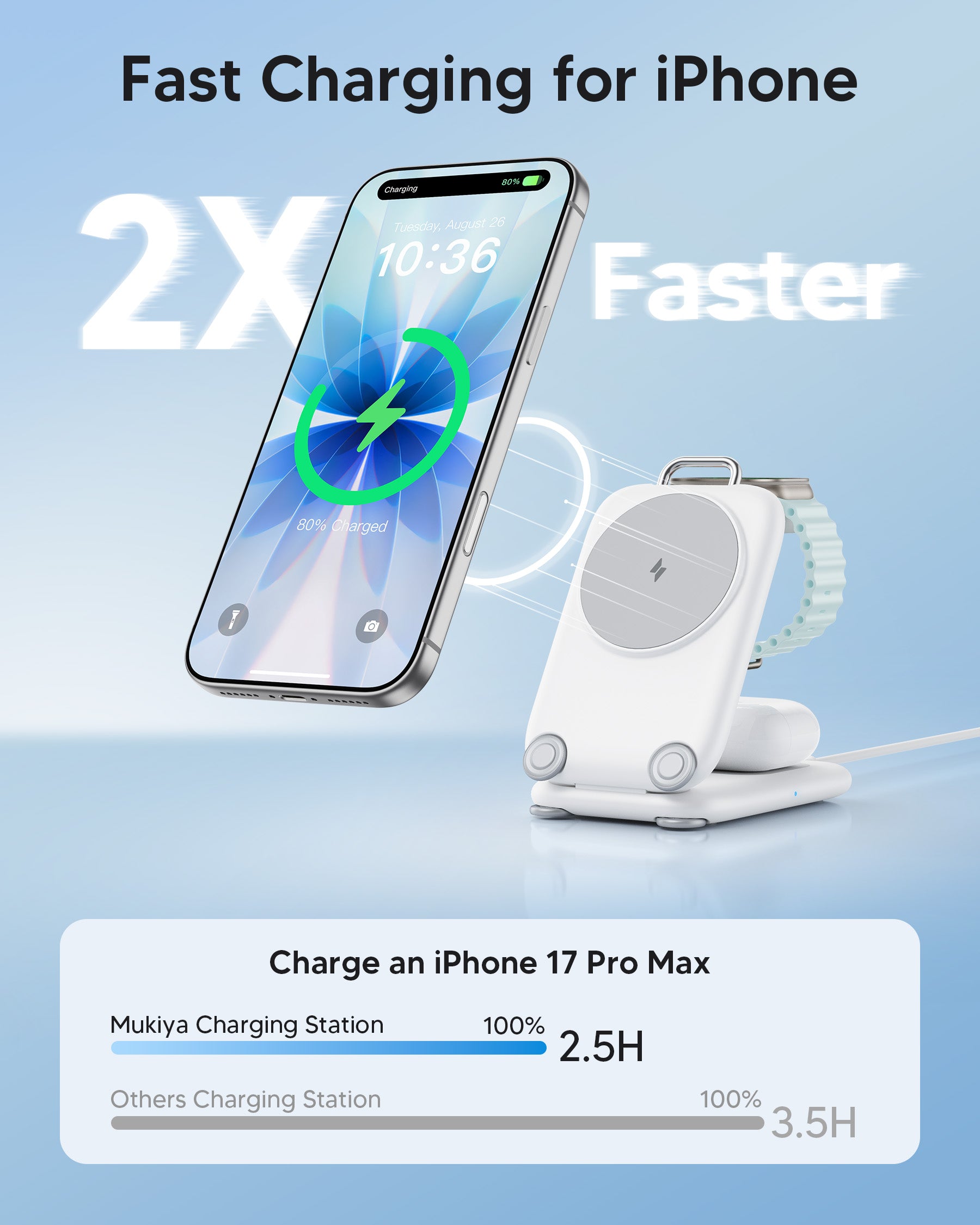
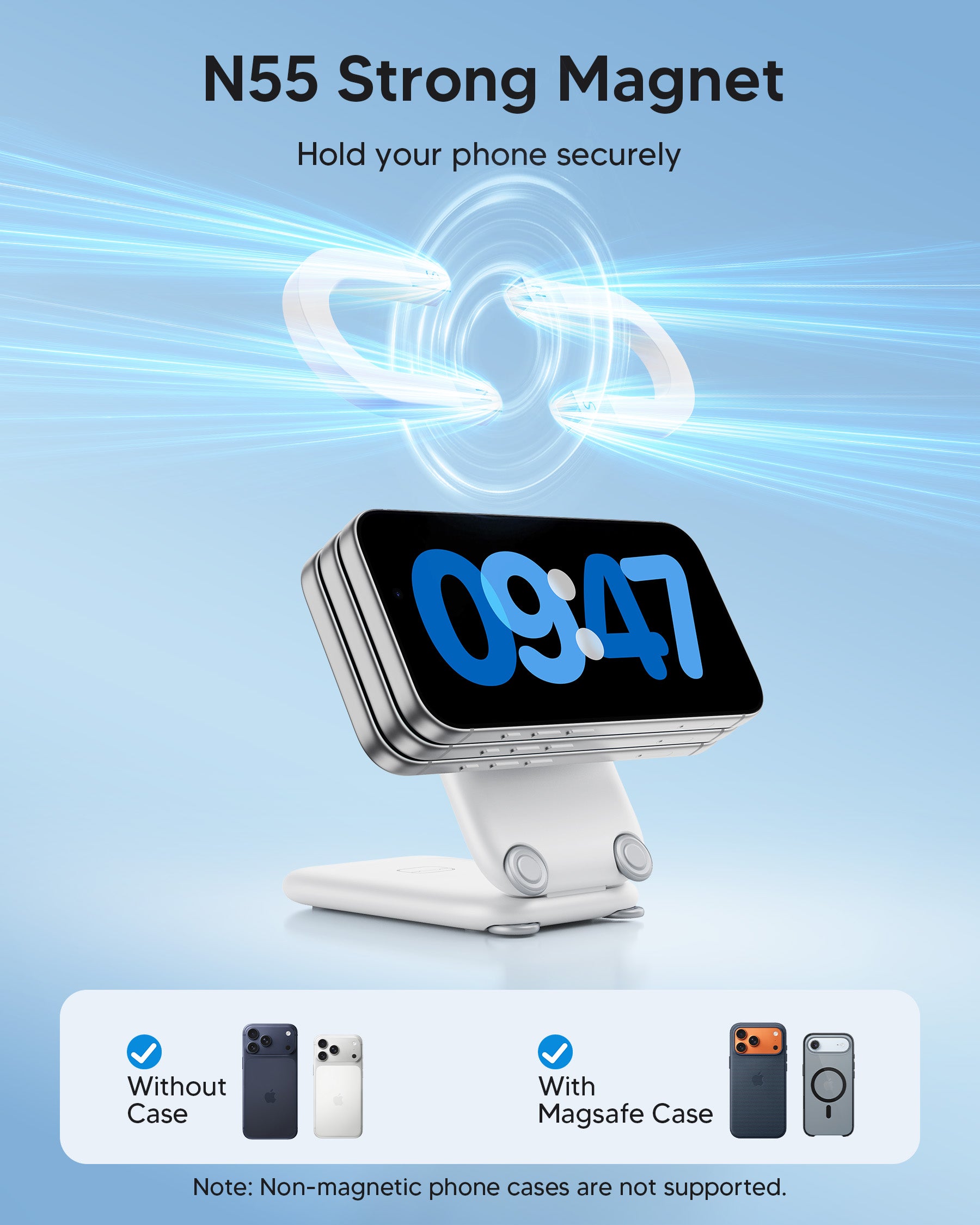
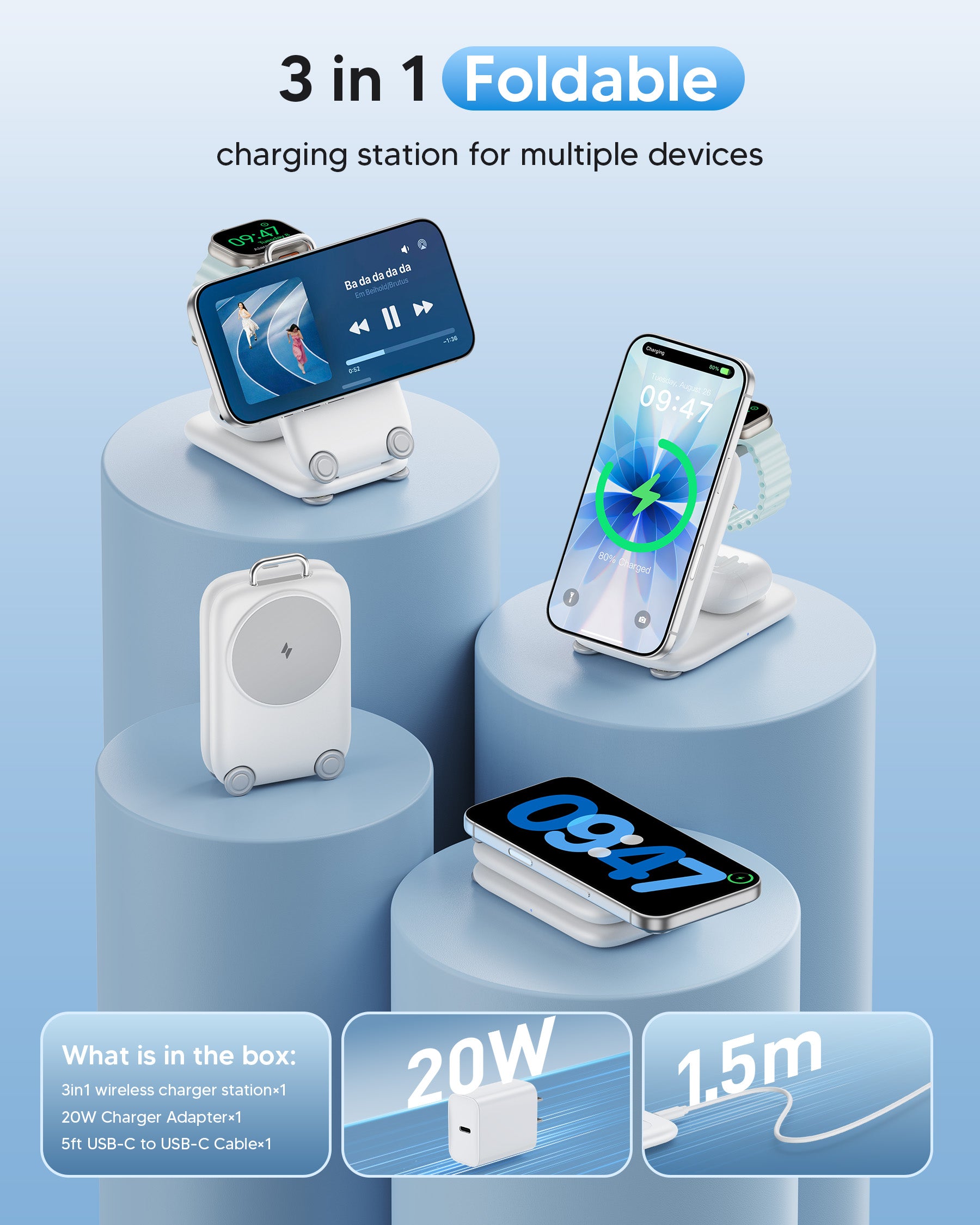
मुकिया सूटकेस 3-इन-1 फ़ोल्डेबल मैग्नेटिक वायरलेस चार्जर | यात्रा चार्जिंग स्टेशन
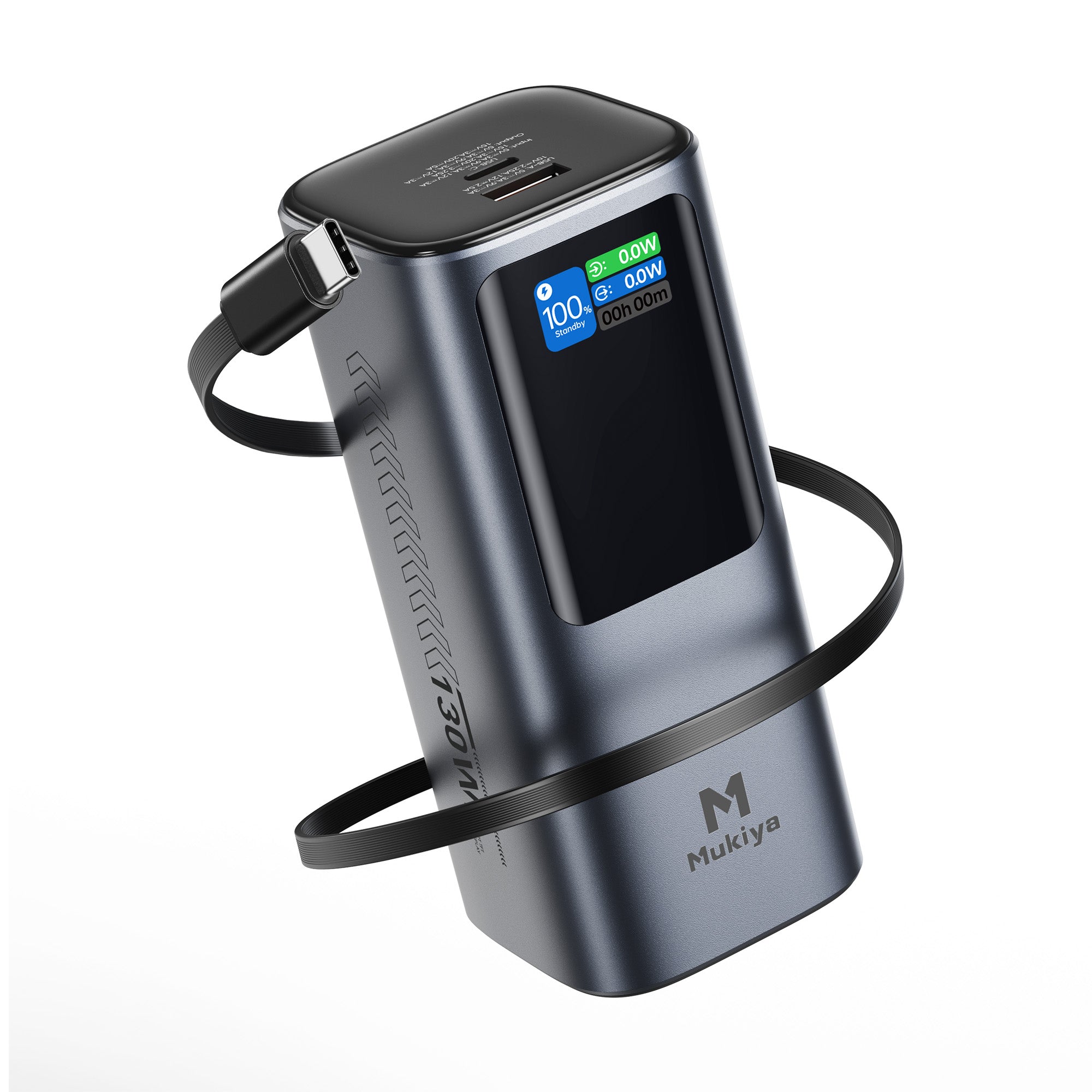
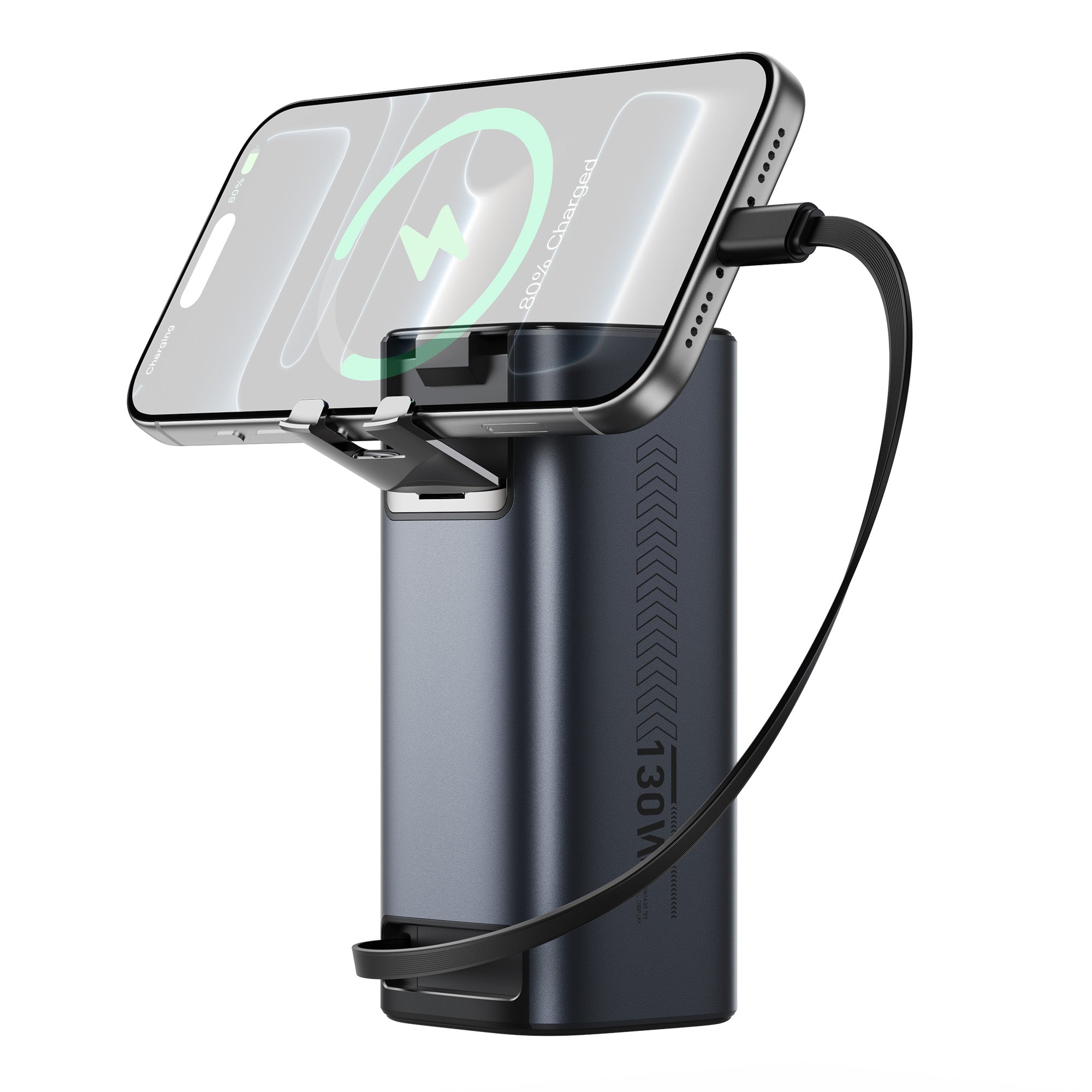
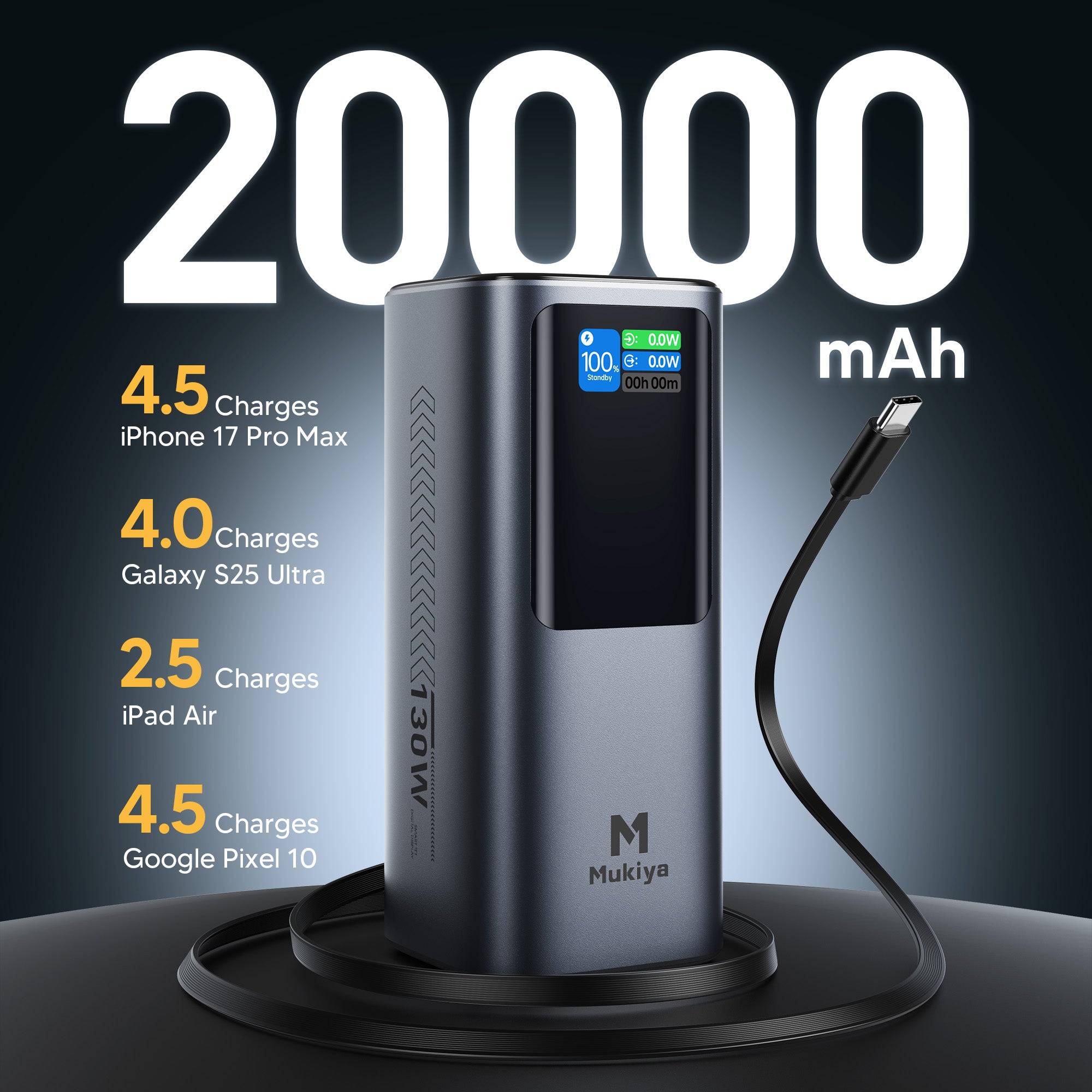
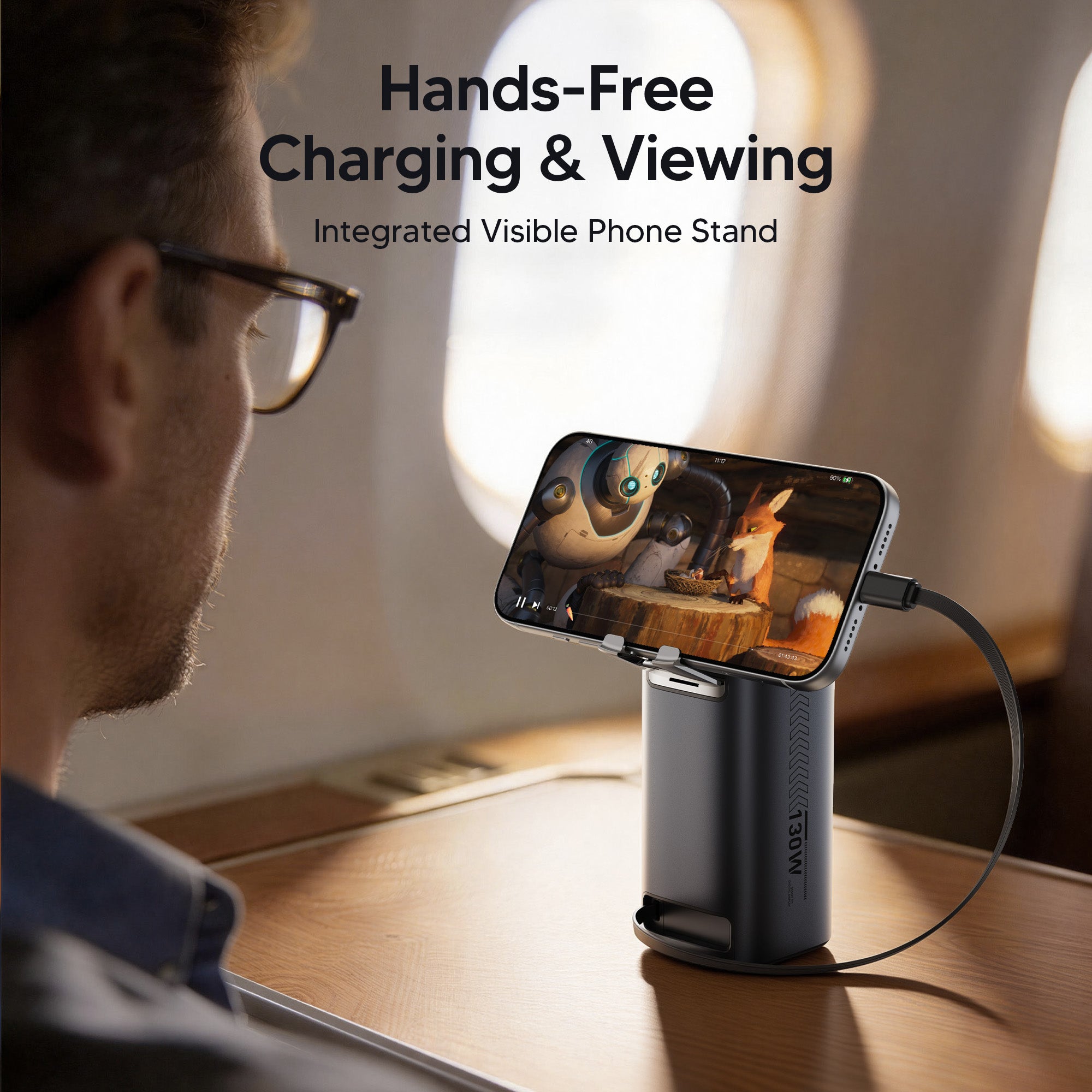
मुकिया 130W लैपटॉप पावर बैंक 20,000mAh, बिल्ट-इन रिट्रैक्टेबल केबल और फ़ोन स्टैंड के साथ


मुकिया हैंडबैग डुअल-केबल पावर बैंक | 10,000mAh 30W फ़ास्ट चार्जिंग
FAQs
Which Mac mini models is this dock compatible with?
The dock is designed for Mac mini M6, M5 Pro, M4 and M4 Pro. Connect the included USB-C host cable to a rear Thunderbolt port on your Mac mini. No additional dock driver is required.
What SSD can I install, and is an SSD included?
The enclosure supports single-sided M.2 NVMe SSDs up to 8TB in 2230, 2242, 2260 and 2280 sizes. Compatible M-key and B+M-key NVMe drives are supported. M.2 SATA drives, double-sided SSDs and drives with attached heatsinks are not supported.
The SSD is sold separately. Installing one adds external storage; it does not replace your Mac mini’s built-in SSD.
Why isn’t my installed SSD showing up on my Mac?
First, connect a compatible external 5V/3A power adapter to the dock’s power input using the included USB-A to USB-C power cable. External power is required for SSD detection. The power adapter is not included.
Also check that the SSD is compatible and securely installed. A new SSD may need initialization and formatting in Disk Utility. Back up any existing data before formatting.
Why are my transfer speeds lower than 10Gbps or 312MB/s?
10Gbps is the maximum interface bandwidth, while 312MB/s is the maximum UHS-II card-reader interface speed. Actual transfers depend on your SSD or memory card, connected devices, cables and workload.
The SSD, USB ports and card readers share one 10Gbps host connection, so they cannot all reach their individual maximum speeds simultaneously. The two rear USB-A 2.0 ports support up to 480Mbps.
Can the USB-A ports charge my iPad or connect an Apple SuperDrive?
The USB-A ports do not support iPad charging, Apple SuperDrive or CD readers. Use the front 10Gbps USB-A ports for compatible storage devices and other USB peripherals. The rear USB-A 2.0 ports are suited to keyboards, mice and other low-speed accessories.
Can I turn off the ambient light?
Yes. Long-press the light-control button to turn the ambient light off or back on. Short-press to cycle through cool white, warm white, ice blue and red.
Turning the light off does not disconnect your accessories or SSD. Keep the external power supply connected while using the SSD.